

Troubleshooting OAuth#
Debugging#
In order to learn about, configure and debug OAuth configuration, it can be useful to follow the example below.
Create the script.py file:
print("Start of script ...")

import panel as pn

pn.extension()

user = pn.state.user or "Guest User"
access_token = pn.state.access_token or "No access token"
refresh_token = pn.state.refresh_token or "No refresh token"
user_info = pn.state.user_info or "No user info"
pn.ui.Column(
    "Hello World\n\n[logout](./logout)",
    user,
    access_token,
    refresh_token,
    user_info,
).servable()
print("End of script ...")
Depending on your OAuth provider and setup, you may run a command similar to the one below to get extensive debugging information:
BOKEH_LOG_LEVEL=trace \
BOKEH_PY_LOG_LEVEL=debug \
PANEL_LOG_LEVEL=debug \
panel serve script.py \
--oauth-provider=azure \
--oauth-key='CLIENT_ID' \
--oauth-secret='CLIENT_SECRET' \
--cookie-secret='COOKIE_SECRET' \
--oauth-encryption-key='ENCRYPTION_KEY' \
--oauth-redirect-uri=REDIRECT_URI \
--oauth-extra-params "{'tenant': 'TENANT_ID'}" \
--address 0.0.0.0 \
--port 5006 \
--allow-websocket-origin=localhost:5006 \
--prefix=apps/debug-panel-oauth
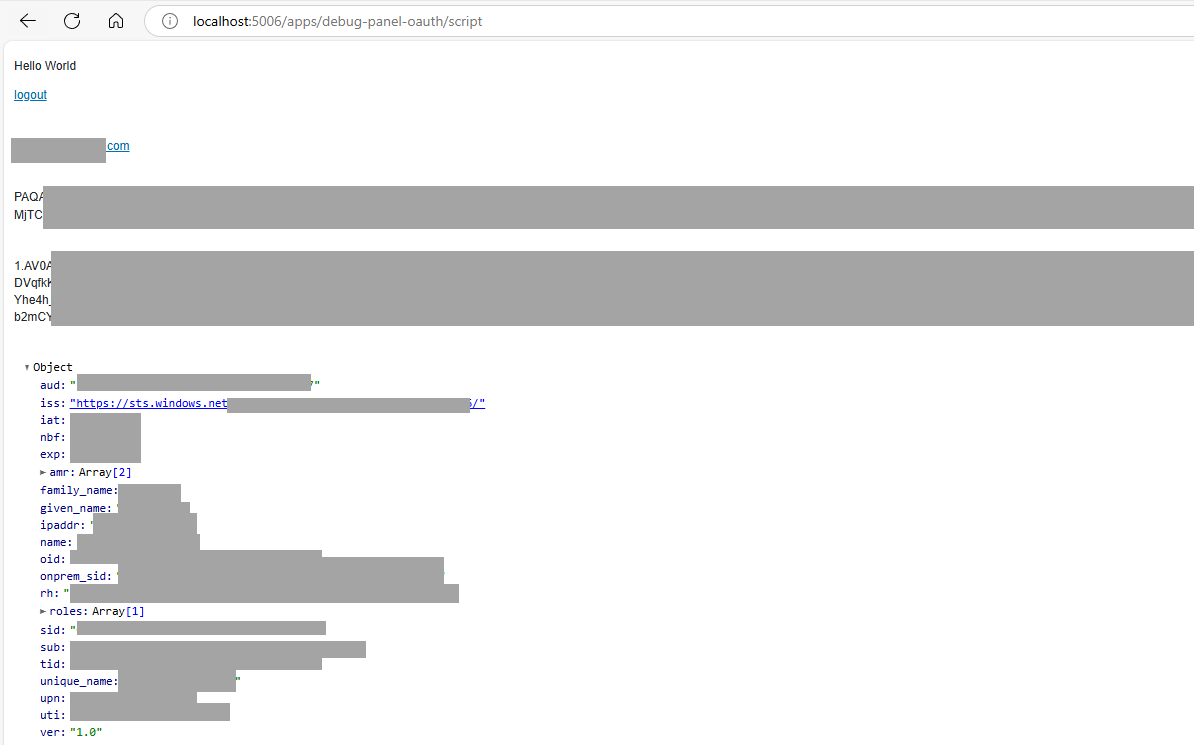
Try opening your app in a new private/incognito browser window. Your debugging app should look something like this:
Known Issues#
As always, try to search our GitHub Issue tracker or Discord community to see if someone else has experienced the same issue. If you need further assistance, reach out to the community.
Could not open websocket#
If the websocket cannot connect, you will see an error like this in the browser console:
WebSocket connection to 'wss://example.org/apps/panel-oauth-app/script/ws' failed
[bokeh 3.7.2] Failed to connect to Bokeh server: Could not open websocket
[bokeh 3.7.2] Failed to load Bokeh session XXXXXXXXXXXXXXXXXXXXXXXXXXXX: Error: Could not open websocket
Error rendering Bokeh items: Error: Could not open websocket
[bokeh 3.7.2] Lost websocket 0 connection, 1006 ()
[bokeh 3.7.2] Websocket connection 0 disconnected, will not attempt to reconnect
Cause: Request Headers Too Big#
This is by far the most common cause. The most important thing to understand is that it is almost always a header size problem, not a problem with “multiple accounts” or your browser, even though those are common ways to stumble onto it.
When a Bokeh/Panel session starts, the server hands the browser a session token
and the browser sends it back in the Sec-WebSocket-Protocol request header when it
opens the WebSocket. With OAuth enabled, this token embeds the originating request’s
cookies and headers — and your OAuth cookies (access_token, id_token,
refresh_token) can be large, especially with Azure/Entra ID accounts that belong to
many groups, or when using --oauth-encryption-key (which inflates them further).
If the resulting header exceeds the limit your proxy allows for a single request
header line (for nginx this is large_client_header_buffers, default 8 KB),
the proxy rejects the WebSocket upgrade — typically with an HTTP 400 — before it
ever reaches the Panel server, and the browser reports Could not open websocket.
Because the failing header is often only a few hundred bytes over the limit, the same app can appear to “work” in an incognito window, a different browser, or after clearing cookies — simply because those carry slightly smaller headers and slip back under the limit. These are not reliable fixes; the header will creep back over the limit as tokens grow.
How to diagnose#
In your browser developer tools, open the Network tab, reproduce the failure, and
inspect the failed .../ws request:
If it shows “Provisional headers are shown” / no response and an
HTTP 400, and the request never appears in your Panel server logs, the proxy is rejecting it.Look at the size of the
Sec-WebSocket-ProtocolandCookierequest headers. If either approaches or exceeds ~8 KB, this is your problem. (Chromium’schrome://net-export/edge://net-exportcapture shows the exact failure reason.)
Solutions#
Increase your proxy’s request-header buffer (recommended for production). For nginx, raise
large_client_header_buffers(andclient_header_buffer_size), e.g.large_client_header_buffers 4 32k;. Note these are request-header settings — raising response buffers such as nginx’sproxy_buffer_sizewill not help. On the Kubernetesingress-nginxcontroller these are not available as per-Ingressannotations; they must be set in the controller’s ConfigMap (large-client-header-buffers,client-header-buffer-size) — setting them asnginx.ingress.kubernetes.io/...annotations has no effect.Stop embedding the large OAuth cookies in the token. Serve with
--exclude-cookies access_token id_token refresh_tokenso they are not packed into the session token (they are still sent in theCookieheader and used for authentication). This shrinks the token dramatically. Note thatpn.state.access_token,pn.state.refresh_tokenandpn.state.user_infoare read from the session context, so they will not be available inside the app when those cookies are excluded — exclude only the ones your app does not need.Reduce the size of the tokens themselves. Request fewer scopes, and for Azure configure group overage (so large group lists are not inlined into the token).
Run without an encryption key (less secure, but produces smaller cookies and works with default proxy configurations) by removing
--oauth-encryption-key/PANEL_OAUTH_ENCRYPTION.
For more details see Issue #7909 and Issue #8634.
A note on “multiple accounts”#
Being signed into multiple accounts (e.g. a corporate and a personal Microsoft account) does not by itself break the WebSocket — those extra accounts live as cookies on the identity provider’s domain, not on your app’s domain, so they do not enlarge your app’s request headers. If multiple accounts seem to matter, it is usually because one account simply has larger tokens and tips you over the header limit described above.
What multiple accounts can cause is the wrong account being selected during login.
To control this, forward a prompt parameter to the provider via
oauth_extra_params, for example for Azure/Entra ID:
panel serve app.py --oauth-provider=azure \
--oauth-extra-params "{'tenant': 'TENANT_ID', 'prompt': 'select_account'}" \
...
prompt=select_account always shows the account picker so the user can choose the
right account; prompt=login forces re-authentication. See the
Azure provider docs for details.
